


BPToolBox
Blue Precision Toolbox is a comprehensive tool for data transformation between different formats, such as JSON and Text. These tools complement Make scenarios to allow for tailored solutions without the need for complex functions. Notable functions include JSON restructuring tools such as Pathing with Expressions and Re-Typing JSON to convert to correct data types, such as numeric and boolean types.
What Blue Precision ToolBox modules are available in the Make platform
- JSON : Match JSON Path Pattern, Minify JSON, Re-Type JSON, Escape JSON, Unescape JSON
- Text : Extract Text Matches, Extract Regex Matches, Generate Random String
Connect BPToolBox to Make
- To establish the connection in Make, insert a Blue Precision ToolBox module into a scenario. Under Connection, click “Create a connection”.
- The Create a Connection dialog appears.
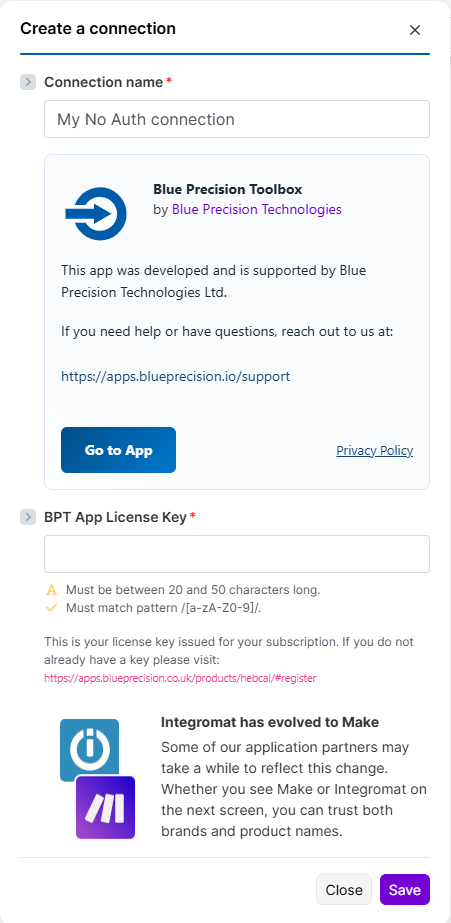
- In the Connection name field, enter a name to identify the connection.
- Enter your Registered BPT App License Key.
 For more information on how to acquire an App License Key, refer to the
FAQ
page.
For more information on how to acquire an App License Key, refer to the
FAQ
page.- Click Save.
Build BPToolBox Scenarios
After connecting the app, you can perform the following actions:
JSON
Match JSON Path Pattern
Extract JSON by Path
This module contains the following fields
| Field | Usage |
|---|---|
| Connection | Select the required connection from the dropdownIf no connection exists, Create a Connection. |
| JSON String or Object * | Value can be a JSON String or an Object (Required) |
| Expression * | JSON Path Expression (Required) |
| Return Relative Path * | When set to true, it will also return the relative Path in response*.* Default is false (Required) (Advanced) |
| Parse Response * | This structures the output data so that it’s easy to map. All mappable items will be available after you run the module once. Default is true (Required) (Advanced) |
| Return error if JSON Path request fails * | This will return an empty payload rather than an error if set to false. Default is true (Required) (Advanced) |
This module takes a JSON string or object and uses a relative path syntax that follows https://restfulapi.net/json-jsonpath/ . The response can include the input path and can optionally parse the JSON so it can be used effectively with other modules.
If invalid JSON is supplied, the module returns an empty response when the scenario is configured so the module does not throw an error on failure.
Minify JSON
Minifies JSON input. Accepts objects or JSON strings.
This module contains the following fields
| Field | Usage |
|---|---|
| Connection | Select the required connection from the dropdownIf no connection exists, Create a Connection. |
| JSON String or Object * | JSON value to retype. Use a JSON string. If you map an object/collection from another module, Make will typically serialize it to JSON for this field. (Required) |
| Return error if Minify JSON request fails * | This will return an empty payload rather than an error if set to false. Default is true (Required) (Advanced) |
This module takes a JSON string or object and compresses data, effectively reducing the amount of data.
If invalid JSON is supplied, the module returns an empty response when the scenario is configured so the module does not throw an error on failure.
Re-Type JSON
Accepts an object or JSON string. Converts string values to proper types.
This module contains the following fields
| Field | Usage |
|---|---|
| Connection | Select the required connection from the dropdownIf no connection exists, Create a Connection. |
| JSON String or Object * | JSON value to retype. Use a JSON string. If you map an object/collection from another module, Make will typically serialize it to JSON for this field. (Required) |
| Convert numbers * | Convert numeric strings (e.g. “42”, “3.14”, “1e3”) into numbers. Default is true. (Required) |
| Convert booleans * | Convert “true” and “false” into boolean values. Default is true. (Required) |
| Convert null * | Convert “null” into null. Default is true. (Required) |
| Ignore fields | Array of JSONPath-like selectors to skip retyping at those paths. Supported patterns: $.a.b.c, $.items[0].id, $.items[*].id. (Advanced) |
| Parse Response * | This structures the output data so that it’s easy to map. All mappable items will be available after you run the module once. Default is true. (Required) (Advanced) |
| Return error if Re-Type JSON request fails * | This will return an empty payload rather than error if set to false. Default is true. (Required) (Advanced) |
The module takes JSON string or object and corrects numbers, booleans and nulls from being string.
This will output the response as either an object that has been parsed or JSON String and uses JSON Pathing to allow for ignoring any fields that should remain as string for example some numeric id can be used as string also. Please see Match JSON Path Pattern for more on JSON Pathing.
Escape JSON
Escape JSON input. Accepts objects or JSON strings.
This module contains the following fields
| Field | Usage |
|---|---|
| Connection | Select the required connection from the dropdownIf no connection exists, Create a Connection. |
| JSON String or Object * | JSON value to retype. Use a JSON string. If you map an object/collection from another module, Make will typically serialize it to JSON for this field. (Required) |
| Return error if Escape JSON request fails * | This will return an empty payload rather than an error if set to false. Default is true (Required) (Advanced) |
This module takes the JSON String or Object and escapes the JSON accordingly.
Unescape JSON
Unescape JSON input. Accepts only JSON string.
This module contains the following fields
| Field | Usage |
|---|---|
| Connection | Select the required connection from the dropdownIf no connection exists, Create a Connection. |
| JSON String or Object * | JSON value to retype. Use a JSON string. If you map an object/collection from another module, Make will typically serialize it to JSON for this field. (Required) |
| Parse Response * | This structures the output data so that it’s easy to map. All mappable items will be available after you run the module once. (Required) (Advanced) |
| Return error if Unescape JSON request fails * | This will return an empty payload rather than an error if set to false. Default is true (Required) (Advanced) |
This module takes an escaped JSON string (for example, a JSON value that has been stored inside another JSON field or passed as a string) and converts it back into proper JSON.
If Parse Response is enabled, the output is a parsed object you can map directly in later modules.
If Parse Response is disabled, the module returns a clean JSON string.
Use this when:
- An API or previous module returns JSON as a string (with lots of backslashes)
- You have run Escape JSON earlier in the scenario and now need to restore it
- You need to turn a string field into mappable JSON fields for later modules
Example – Convert an escaped JSON string to a parsed object
JSON String or Object
"{\"id\": \"123\", \"amount\": \"42.50\", \"paid\": \"false\"}"
Settings
- Parse Response:
true - Return error if Unescape JSON request fails:
true
Result (parsed object)
{
  "id": "123",
  "amount": "42.50",
  "paid": "false"
}
You can now:
- Map
id,amount, andpaiddirectly into other modules, or - Chain this with Re-Type JSON to convert
"42.50"to a number and"false"to a boolean
Text
Extract Text Matches
Extracts one or more values from text by finding everything between a start and end string.
This module contains the following fields
| Field | Usage |
|---|---|
| Connection | Select the required connection from the dropdownIf no connection exists, Create a Connection. |
| Text to search * | The full text to search within. This can be plain text, a URL, or mapped output from another module. (Required) |
| Start string * | The starting string that marks where extraction should begin. Each occurrence Creates a new match. (Required) |
| End mode * | Choose whether the End value is a single string or a list of strings to try in order.Default to single end string. (Required) |
| End string | The ending string that marks where extraction should stop (for example “&”). Leave blank to extract to the end of the text. |
| Include in result | Controls which parts are included in the extracted value. Allowed values are:• Start string• End string• WrapperUsers can select multiple options to be returned in the response. |
| Use Wrapper * | Optional wrapper tokens surrounding the extracted value, such as quotes or HTML tags. (Required) |
| Open * | Wrapper opening string (for example ’ or ). (Required) |
| Close * | Wrapper closing string (for example ’ or ). (Required) |
| Case insensitive | If enabled, the start and end strings will be matched without considering letter case. (Required) (Advanced) |
| Return Input Values | If enabled, this will return the input values in the response (Required) (Advanced) |
This module extracts specific parts of text using clear start and end markers.
Use it when you need predictable text extraction without writing regular expressions.
Common use cases include:
- Extracting IDs from URLs, such as Invoice IDs, Order IDs, or User IDs
- Reading query parameters from API or webhook URLs
- Pulling values wrapped in quotes, brackets, or HTML tags
- Extracting repeated values from structured logs or emails
- Cleaning mapped text before sending it to another module
How it works at a high level:
- You define a Start string where extraction begins
- You optionally define an End string where extraction stops
- You can remove or preserve surrounding wrappers such as quotes or HTML
- Each occurrence of the start string produces one result
Example 1 – Extract an Invoice ID from a URL
Goal
Extract the InvoiceID value from a Xero URL, without quotes or extra characters.
Form setup
Text to search
https://go.xero.com/AccountsPayable/View.aspx?InvoiceID='c45832ad-2cab-4f53-a4c9-24db38052893'&testParm2='test2'
Start string
InvoiceID=
End mode
- Single end string
End string
&
Include in result
- None
Use Wrapper
- Yes
Open
'
Close
'
Case insensitive
- False
Return Input Values
- False
Result
c45832ad-2cab-4f53-a4c9-24db38052893
Example 2 – Include the quotes in the result
Goal
Extract the InvoiceID and keep the surrounding quotes.
Differences from Example 1
Only one change.
Include in result
- Wrapper
Result
'c45832ad-2cab-4f53-a4c9-24db38052893'
Example 3 – Extract everything after “?”
Goal
Get the full query string from a URL.
Form setup
Text to search
https://go.xero.com/AccountsPayable/View.aspx?InvoiceID='c45832ad-2cab-4f53-a4c9-24db38052893'&testParm2='test2'
Start string
?
End mode
- Single end string
End string
- Leave empty
Include in result
- None
Use Wrapper
- No
Result
InvoiceID='c45832ad-2cab-4f53-a4c9-24db38052893'&testParm2='test2'
Example 4 – Simple parameter without quotes
Goal
Extract a parameter value that is not wrapped.
Form setup
Text to search
https://go.xero.com/AccountsPayable/View.aspx?InvoiceID=c45832ad-2cab-4f53-a4c9-24db38052893&testParm2=test2
Start string
InvoiceID=
End mode
- Single end string
End string
&
Use Wrapper
- No
Result
c45832ad-2cab-4f53-a4c9-24db38052893
Example 5 – Multiple matches with HTML wrappers
Goal
Extract values inside <div> tags from multiple lines.
Form setup
Text to search
Param 1:<div>Test Output 1</div>
Param 2:<div>Test Output 2</div>
Start string
Param
End mode
- Single end string
End string
- New line
Use Wrapper
- Yes
Open
<div>
Close
</div>
Result
Test Output 1
Test Output 2
Extract Regex Matches
Extracts one or more values from text by finding everything between a start and end string.
This module contains the following fields
| Field | Usage |
|---|---|
| Connection | Select the required connection from the dropdownIf no connection exists, Create a Connection. |
| Regex Patterns * | Define one or more regex patterns. Each pattern runs independently and returns all matches found in its input text. Output is returned as a collection keyed by Pattern Name (or pattern_# if blank). (Required) |
| Pattern Name | Optional identifier for this pattern. Used as the key in the output. If blank, pattern_1, pattern_2, etc. will be used. |
| Text to Search * | The text to run the regex against. Supports multi-line input. (Required) |
| Regex Pattern * | Regex pattern WITHOUT surrounding slashes. Example: [?&]a=([^&#]*) . (Required) https://regex101.com/ for testing regex patterns |
| Regex Flags | Optional regex flags. Global matching (g) is always enabled.• Case-insensitive• Multiline• Dot matches newlineMulti-select options listed. |
| Value to Return * | Choose whether the output value should be the full match or a specific capture group. (Required) |
| Group Number * | Capture group number to return (1 = first capture group). (Required) |
| Limit Matches | Maximum number of matches to return for this pattern. Leave empty for no limit. |
| Output Options | Adds optional convenience fields (config or values) to each pattern’s output. (Advanced) |
Finds one or more values in text using regular expressions (regex).
Use this when start/end strings are not enough, or when you only want part of a match (for example, a query parameter value, a number, or text inside tags).
Each pattern runs independently on its own input text. All matches are returned and grouped under the Pattern Name (or pattern_1, pattern_2, and so on if left blank), making them easy to map in Make.
Use Extract Text Matches when you have fixed start and end strings.
Use Extract Regex Matches when:
- Text formats vary or contain optional parts
- You need to validate content (digits only, specific formats, etc.)
- You only want part of a larger match via capture groups
Example 1 – Extract all numbers from text
Goal
Collect every number that appears in the text.
Text to search
Order 123 shipped in 2024 with ref 456
Regex pattern
\d+
Key settings
- Pattern Name:
numbers - Value to Return: Full match
- Limit Matches: leave empty (return all)
Result values
1232024456
Use this when you want all IDs, amounts, or code‑like numbers from a sentence, log line, or description.
Example 2 – Extract a query parameter value
Goal
Get just the InvoiceID value from a URL, regardless of other parameters.
Text to search
https://go.xero.com/AccountsPayable/View.aspx?InvoiceID=585b5a83-1263-4af0-a9c0-c9f21f8b7b4f&testParm2=test2
Regex pattern
InvoiceID=([^\s&#]+)
Key settings
- Pattern Name:
invoiceId - Value to Return: Capture group
- Group Number:
1(the part inside(...)) - Regex Flags: optional
i(case‑insensitive)
Result values
585b5a83-1263-4af0-a9c0-c9f21f8b7b4f
Use this pattern for other parameters by replacing InvoiceID with the parameter name you need.
Example 3 – Extract content inside HTML tags across lines
Goal
Get the inner text of a <div> tag, even when it spans multiple lines.
Text to search
Header
<div>Line 1
Line 2</div>
Footer
Regex pattern
<div>(.*?)<\/div>
Key settings
- Pattern Name:
divInner - Value to Return: Capture group
- Group Number:
1 - Regex Flags:
i,m,si– case‑insensitive tag matchm– multiline anchorss– dot matches newline (so.can cross line breaks)
Result values
Line 1\nLine 2
Use this approach to pull content out of other tags such as <span>, <p>, or custom wrappers.
Example 4 – Handling missing capture groups
Goal
Show what happens if you ask for a capture group that does not exist in the pattern.
Text to search
Order 123 shipped
Regex pattern
\d+
This pattern matches numbers but does not define any capture groups (…).
Key settings
- Pattern Name:
missingGroup - Value to Return: Capture group
- Group Number:
1
Result behaviour
- The match (
123) is still found - The selected value is
nullbecause group 1 does not exist - An error message is included for this pattern explaining that the requested group is missing
This helps you understand why a value might be empty even though the pattern itself matches.
Example 5 – Invalid regex pattern
Goal
Show what happens when the regex itself is invalid.
Text to search
hello
Regex pattern
(
This is not a valid pattern because the opening bracket is never closed.
Key settings
- Pattern Name:
badRegex - Value to Return: Full match
- (Optional) Enable Output Options to include config details in the result
Result behaviour
- No matches are returned
- An error message is included describing why the pattern is invalid
This is useful when you are building or testing new patterns and want clear feedback on errors.
Generate Random String
Generate Randomised String given letters, numbers and special chars for password, api keys and testing.
This module contains the following fields
| Field | Usage |
|---|---|
| Connection | Select the required connection from the dropdownIf no connection exists, Create a Connection. |
| Use Lowercase * | Use letters [a-z] .Default as True. (Required) |
| Use Uppercase * | Use Letters [A-Z]. Default as False. (Required) |
| Use Numbers * | Use Numbers [0-9]. Default as False.(Required) |
| Use Special Characters * | Set Special Character to be in random string. Default as false. (Required) (Advanced)See Special chars for setting up chars. |
| Special chars | When Use Special Characters * is set, allows only the following special characters: ! @ # $ % ^ & * ( ) - _ = + [ ] { } ; : , . < > ?. Each character is optional, can appear at most once, and can be in any order.Defaults are !@#$%^&*()-_=+[]{};:,.<>?. |
| Length of String * | How many characters required for generated string (Required) |
| Output Fields | Optional list of metadata fields to include in the output. Allowed values: “length” (returns the generated string length), “flags” (returns which character types were enabled), “specialChars” (returns the special character set used), “charset” (returns the full character pool used for generation), “charsetLength” (returns the size of the character pool). Leave empty to omit metadata.(Advanced) |
Generates a randomised string using letters, numbers, and/or special characters. This is ideal for creating secure passwords, API keys, tokens, test data, or any other value where you need a non‑guessable, configurable string.
You control exactly which character types are allowed (lowercase, uppercase, numbers, special characters) and the total length, so you can match password policies or API constraints. Optional output fields can also return metadata (such as which flags were used or the final character set) to help with debugging or auditing.
Typical use cases include:
- Generating unique passwords or temporary access codes for users
- Creating API keys, client secrets, or webhook tokens
- Producing random IDs or reference codes for testing environments
- Creating sample data for load or regression tests
Example – Generate a 16‑character password
Goal
Generate a secure 16‑character password containing lowercase, uppercase, numbers, and special characters.
Settings
- Use Lowercase:
true - Use Uppercase:
true - Use Numbers:
true - Use Special Characters:
true - Special chars:
!@#$%^&*()-_=+[]{};:,.<>?(leave as default) - Length of String:
16 - Output Fields:
length, flags
Example result
- Generated string:
aZ7@kP9!dq3#Lm2% - Output metadata:
length:16flags:{ "lowercase": true, "uppercase": true, "numbers": true, "specialCharacters": true }
You can then map the generated string into password fields, API secrets, or any other module that needs a secure random value.